Oleeo Elements
Basic Example
Ask your integration consultant for your organisation’s “Oleeo Elements datasource url” to get started.
<oleeo-elements
    datasource-url="https://jobboard-testing.oleeo.io/v1-jobboard/702.json"
    ></oleeo-elements>
    <link href="https://login.tal.net/app_builds/elements/stable/styles.css" rel="stylesheet">
    <script src="https://login.tal.net/app_builds/elements/stable/elements.min.js" async></script>
Theming Example
You can control every background and foreground colour used in the system through these attributes extra attributes. Use our generator to create accessible, appropriate contrast colour schemes.
If you’re making changes to an existing page, replace your existing <oleeo-elements> tag. You should only ever have 1 <oleeo-elements> tag per page.
<oleeo-elements
    color50="#e8eaf6"
    color100="#c5cae9"
    color200="#9fa8da"
    color300="#7986cb"
    color400="#5c6bc0"
    color500="#3f51b5"
    color600="#3949ab"
    color700="#303f9f"
    color800="#283593"
    color900="#1a237e"
    colorA100="#8c9eff"
    colorA200="#536dfe"
    colorA400="#3d5afe"
    colorA700="#304ffe"

    datasource-url="https://jobboard-testing.oleeo.io/v1-jobboard/702.json"
    ></oleeo-elements>
    <link href="https://login.tal.net/app_builds/elements/stable/styles.css" rel="stylesheet">
    <script src="https://login.tal.net/app_builds/elements/stable/elements.min.js" async></script>
Theming & Colors
See the table below for a list of colors and their purpose.
Each color has a corresponding contrast color, e.g. color50 -> contrast50.
Use these to keep text eligible when changing between dark/light colors.
Example: You change your primary color, color500, to black:
color500="#000"
Then set the contrast color to be a light color, like white, to ensure button text stays visible:
contrast500="#fff"
| Name | Purpose |
|---|---|
| color50 | Used as a lower-priority highlight color, e.g. hover background color on table rows |
| color100 | Unused (for now) |
| color200 | Unused (for now) |
| color300 | Unused (for now) |
| color400 | Unused (for now) |
| color500 | Used as the primary color: primary button background, spinner, active tab underline |
| color600 | Unused (for now) |
| color700 | Unused (for now) |
| color800 | Unused (for now) |
| color900 | Unused (for now) |
| colorA100 | Unused (for now) |
| colorA200 | Unused (for now) |
| colorA400 | Unused (for now) |
| colorA700 | Unused (for now) |
| contrast50 | Contrast color for color50 |
| contrast500 | Contrast color for color500 |
Additional columns in vacancy list view
Specify the additional columns to display in the vacancy list view with the additional-columns attribute.
<oleeo-elements
    ...
    additional-columns="location"
    ></oleeo-elements>
location is currently the only supported additional column.
ATS Setup
For each job board you want to appear in Oleeo Elements:
Go to Vacancy Job Boards > Edit a Job Board > under Enabled external Job Boards tick Publish_json.
Filter by Default Category/Industry
Specify the search string with the filter-industry attribute:
<oleeo-elements
    ...
    filter-industry="Accounting"
    ></oleeo-elements>
Sorting by Column
By default, the rows will be sorted by the titles column in ascending order.
Specify the default column used to sort the results:
<oleeo-elements
    ...
    sort-column="closeDate"
    ></oleeo-elements>
title closeDate and location (If enabled. See additional-columns) are the only sortable columns. If you want to dissable sorting altogether, use sort-column="none".
You can also change the default direction for the sort:
<oleeo-elements
    ...
    sort-column="closeDate"
    sort-direction="desc"
    ></oleeo-elements>
The sorting can be set to either asc (default) or desc.
Mappings (for ICONs)
PositionIndustry
The filter-industry="..." attribute is driven by the PositionIndustry schema item.
You can see how these are mapped with:
Forms > Form Items > Vacancy Items > Item Schema Code
Salary (used in salary filtering)
This is mapped to the PositionRemuneration schema item (use the process above to find it). It will work if only the MaximumRange is set, but also works when MinimumRange & MaximumRange are set.
View Salary Filter
The view-filter="..." attribute determines whether salary filtering is visible.
Its values should be true or false only. If left blank/ not included in oleeo element tag,
the default value is false.
Single Board
The single-board="..." attribute is only for use when a client gets data back from several
job boards but only want data from one board to visible to users. The value should match the
ID value of the single board you wish to be visible. If the attribute value is of a board not
included in the data, no vacancies will be shown. If left blank, no filtering will be applied.
Disable Instant Apply
The disable-instant-apply="..." attribute is for clients who advertise jobs but don’t want an apply link
or are advertising for someone else. In this case, the one click apply should be modified.
The value should be true or false only. If left blank/ not included in oleeo element tag, the default value is false.
Currency
The currency code (e.g. GBP, USD) is currently defined in Oleeo Elements itself. Email support if you need to change this.
Troubleshooting Style Conflicts
If a colour is not showing as you expect expect, or that some layout is not looking right (example: something too wide, or too narrow):
Right click on the faulty element > Inspect
Examine the likely culprit in the
Styleslist, usually located to the right in ChromeLook to see if it’s overridden by a style from the host website
Update conflicting CSS on the host website, or override as appropriate.
Example: All buttons are pink, rather than the chosen theme colours
Right click the incorrectly pink button > Inspect Element
Look for background colours, or the incorrect colour in the
StylesareaIn this case, we can see the host website has a background colour set that changes all buttons, including Oleeo Elements
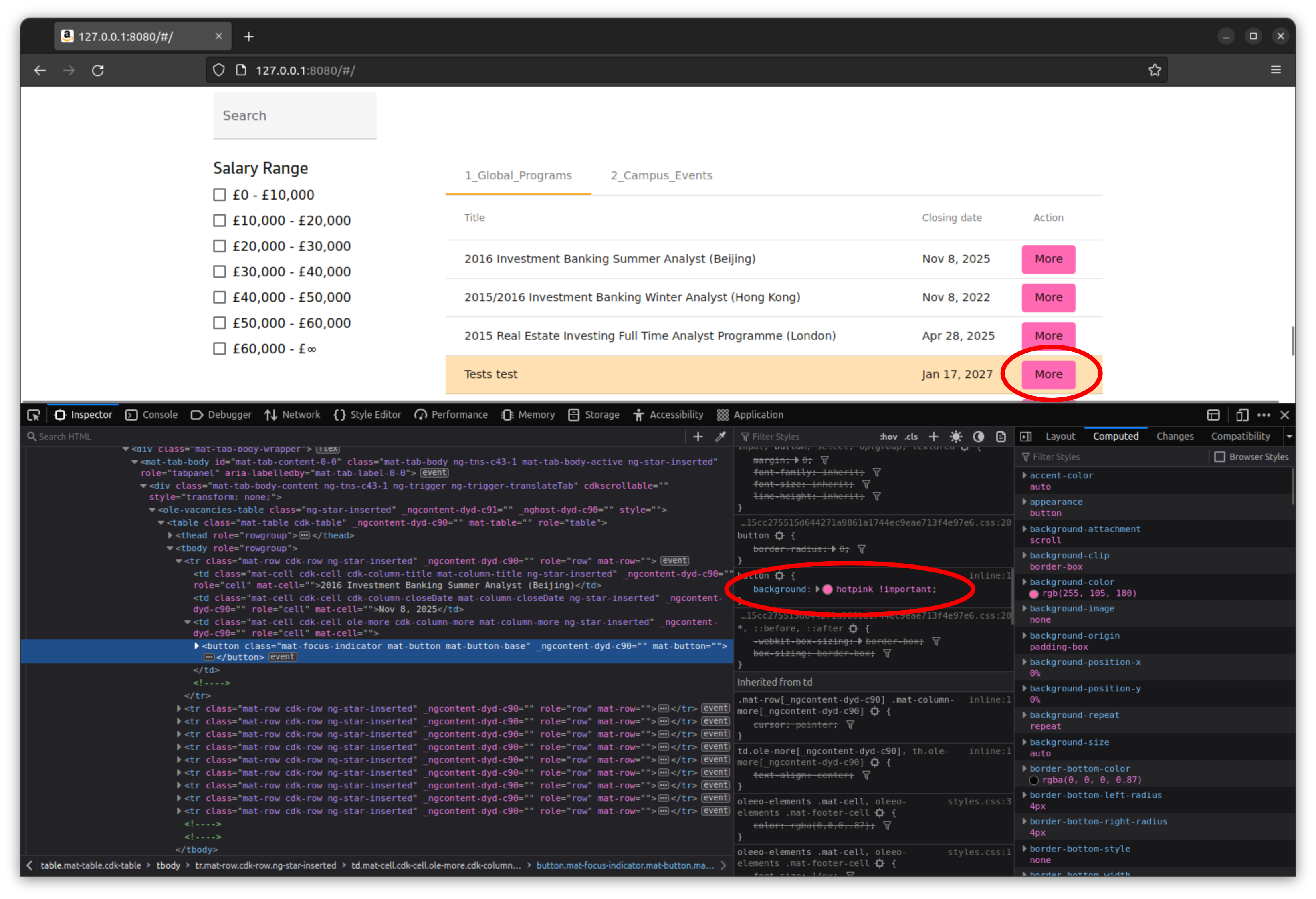
- When the issue identified the next step is to remove the host website style,